Remote work only works when people can reach each other, find information, and move projects forward without waiting for a meeting. That is where Remote Collaboration Tools come in. The right mix keeps conversations organized and files current across time zones. The wrong mix creates tab overload, missed messages, and duplicated work. This guide helps you sort through the options and build a stack that fits.
You will learn what these tools do, how the main categories differ, and which products lead each one. We also cover the real trade-offs, such as choosing a single suite versus a modular stack, and chat versus virtual offices. By the end, you will have a simple process for picking tools your team will actually use, not just tools that look good in a demo.
What Are Remote Collaboration Tools?
Remote Collaboration Tools are software products that let distributed teams communicate, share files, manage tasks, and make decisions together without sharing a room. They cover instant messaging, video calls, shared documents, project boards, and virtual whiteboards. Think of them as a digital office: the hallway, the meeting room, the filing cabinet, and the whiteboard, all in one place.
Good tools support remote work workflows from start to finish. A manager assigns a task, a teammate drafts a document, colleagues comment in real time, and the group settles questions in a channel. Nothing gets buried in email threads. Strong collaboration tools for remote teams also create a searchable record, so new hires and absent teammates can catch up fast without asking for a recap.
Core Categories of Remote Collaboration Tools
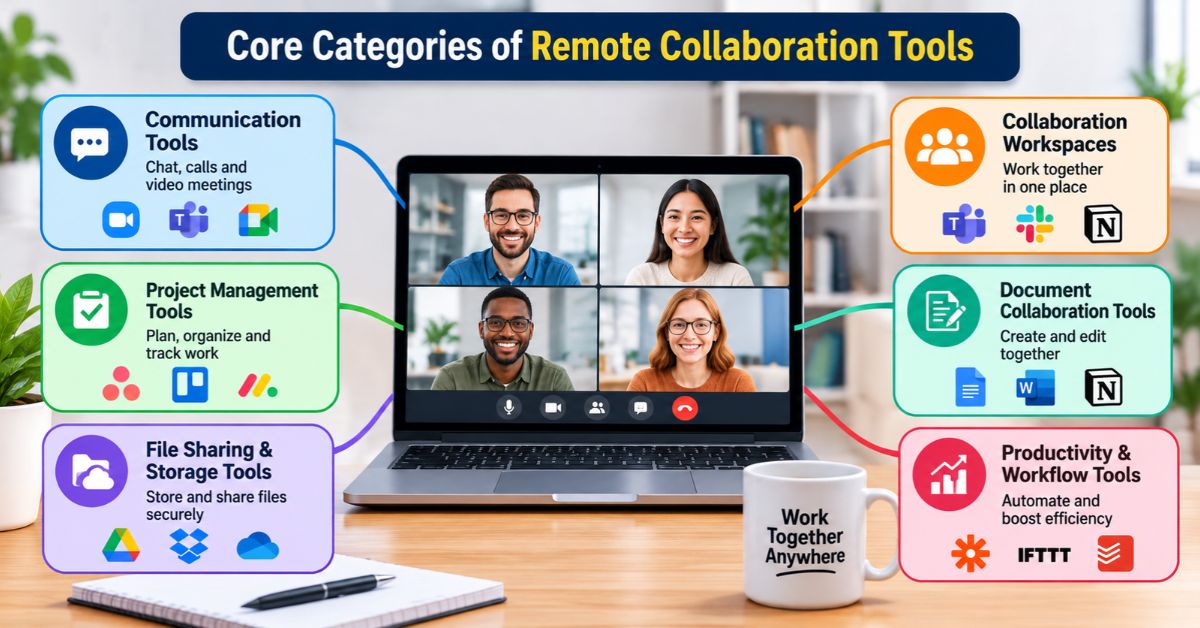
Most teams need tools from six categories. Each solves a different problem, and few products do all of them well. Knowing the categories helps you spot gaps in your current setup. It also keeps you from buying overlapping software that splits attention across too many apps and notifications. A small team may start with two or three categories, while larger organizations often use all six.
| Category | Primary function | Industry standard options |
|---|---|---|
| All-in-one AI workspaces | Combine tasks, documentation, and chat in one hub | ClickUp, Notion |
| Messaging and chat | Fast communication, ad-hoc decisions, central channels | Slack, Google Chat |
| Project management | Boards, visual timelines, and tracking lists | Asana, Monday.com |
| Document synchronization | Real-time file editing without version conflicts | Google Workspace, Microsoft 365 |
| Virtual offices | Spatial audio and interactive virtual spaces | Gather, Nörth |
| Visual whiteboards | Brainstorming, mind mapping, wireframing | Mural, Figma |
Notice that the categories overlap. ClickUp and Notion blend tasks, docs, and chat, while Microsoft 365 spans messaging and document editing. Overlap helps when it reduces app switching. It hurts when two tools do the same job and teammates disagree about where work lives. Decide early which tool owns each job, then write that decision down so everyone follows the same rules.
Best Remote Collaboration Tools by Use Case
All-in-one workspaces and project management
ClickUp and Notion combine tasks, documentation, and chat in a single hub, which suits teams that want fewer tabs. Asana and Monday.com focus on organizing projects into boards, timelines, and tracking lists. Choose an all-in-one when simplicity matters most. Choose a dedicated project tool when you manage complex timelines, several stakeholders, or work that depends on clear visual tracking and accountability.
Messaging and document sync
Slack and Google Chat handle fast communication, quick decisions, and central channels. Google Workspace and Microsoft 365 let several people edit the same file at once, which prevents version-control headaches. Microsoft Teams bundles chat with Office apps in one place. A popular pairing is Slack for conversation and Google Docs for drafting, with links connecting the two so context travels with every file.
Virtual offices and visual whiteboards
Gather and Nörth recreate physical presence with spatial audio and interactive spaces, so a quick chat feels like walking to a colleague’s desk. Mural supports brainstorming and mind mapping, while Figma handles wireframing and design feedback. Add these tools when your team needs creativity or social connection that text alone cannot deliver, especially for workshops, design reviews, and onboarding sessions.
Consolidated Suite vs. Modular Stack
A consolidated ecosystem, such as Microsoft Teams with Microsoft 365 or Google Workspace, keeps everything under one login and one bill. You need fewer integrations, and admins manage one security model. The risk is lock-in. Once your files, chats, and calendars live in one ecosystem, switching becomes slow and expensive. Weak spots in one feature can also drag down the whole setup.
A modular stack pairs best-in-class tools, such as Slack with Monday.com. Each tool does its job well, and you can swap one without rebuilding everything. The cost is context switching. Teammates jump between apps, notifications multiply, and integrations need maintenance. If your team values targeted features and has someone to manage the stack, modular works. Otherwise, consolidate.
| Factor | Consolidated suite | Modular stack |
|---|---|---|
| Setup and admin | Simple, one vendor | More effort, many vendors |
| Feature depth | Good across the board | Excellent in each niche |
| Integrations needed | Few | Many |
| Context switching | Lower | Higher |
| Lock-in risk | Higher | Lower |
Asynchronous Chat vs. Real-Time Virtual Offices
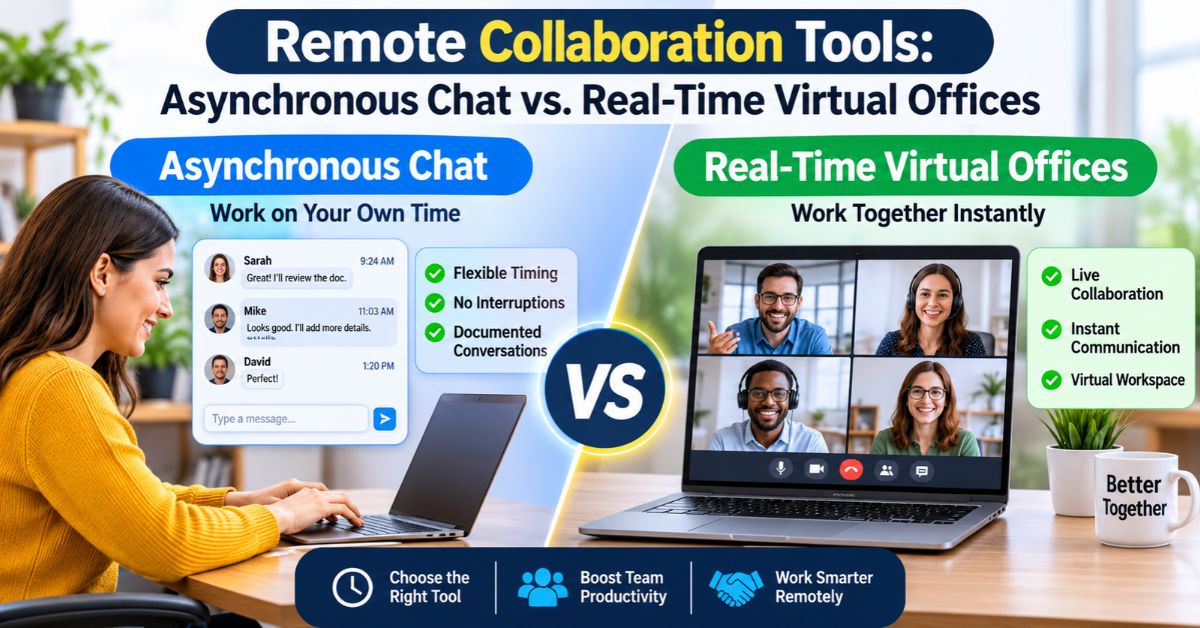
Text-based messaging in Slack or Google Chat reduces immediate interruptions. People reply when they are ready, which protects focus and works across time zones. The downside is text fatigue. Long threads bury decisions, tone gets misread, and quiet teammates can feel invisible. Set clear norms: use channels for updates, threads for discussion, and a short call when a topic runs past a few replies.
Virtual offices like Gather and Nörth lower the barrier for spontaneous conversation. A teammate sees you are free, walks over, and asks a quick question. That energy is hard to match in chat. But it requires active presence management. Without status rules and quiet hours, constant drop-ins can erode deep-work time. Many teams use both: async by default, virtual office for social and collaborative moments.
How to Choose the Right Remote Collaboration Tools
Start with problems, not products. List where your team loses time today, such as missed handoffs, scattered files, or slow decisions. Then match each problem to a category. Run a short pilot with a small group before rolling anything out company-wide. Adoption decides success, so ask the pilot group what felt easy, what felt clunky, and what they would drop.
Follow these steps:
- Map your current workflow and mark the friction points.
- Pick one tool per category, or one suite that covers several.
- Check integrations with software you already use.
- Pilot with one team for two to four weeks.
- Write simple usage rules, then train everyone.
Use this checklist before you commit:
- Does it work well on mobile and across time zones?
- Are security and admin controls strong enough for your data?
- Can people export their data if you switch later?
- Does the total cost stay reasonable as the team grows?
Conclusion
Remote Collaboration Tools work best when they match how your team actually works. Know the six categories: all-in-one workspaces, messaging, project management, document sync, virtual offices, and whiteboards. Then weigh the trade-offs between suites and modular stacks, and between async chat and real-time spaces.
Start small, pilot your choices, and write simple rules for how each tool is used. A lean stack that people love will outperform a long list of features nobody opens. Review your setup every few months, drop what is not working, and keep your Remote Collaboration Tools focused on helping people do their best work.