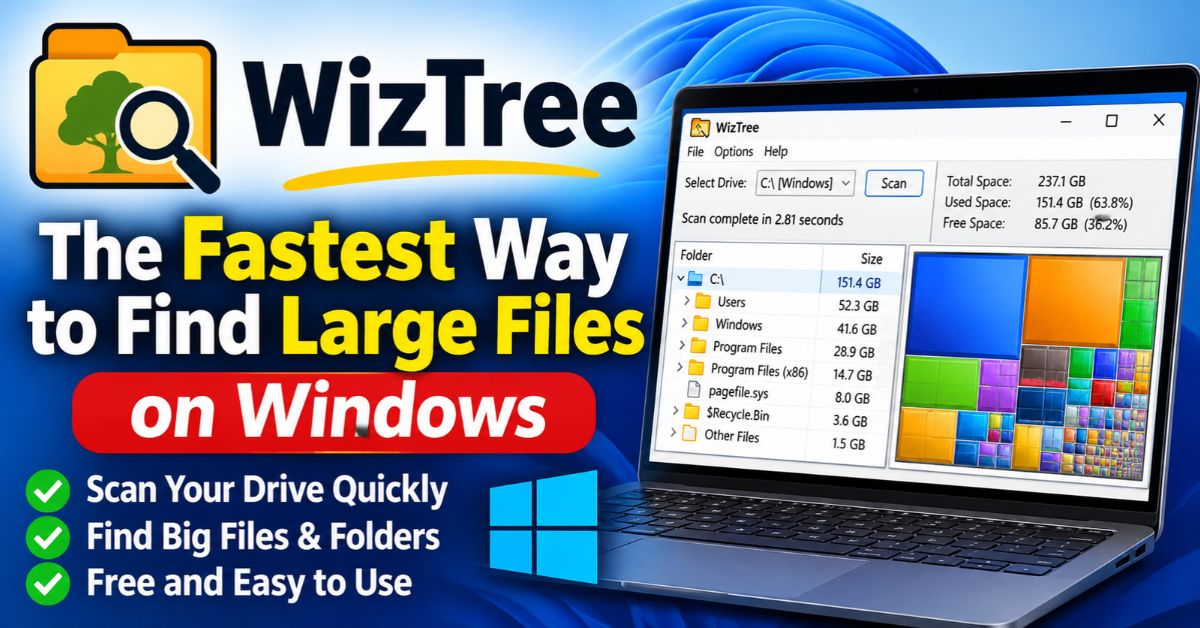
Your hard drive fills up fast. Photos, game installs, video edits, and forgotten downloads pile up until Windows starts nagging about low storage. Finding the culprits by hand through File Explorer takes forever. That is where WizTree comes in. This free disk space analyzer maps your entire drive in seconds and shows exactly which files and folders eat the most room.
You do not need technical skills to use it. The interface ranks everything by size and paints a colorful map of your storage. In this guide, you will learn how the tool works, why it scans so quickly, and how to use it step by step. You will also see how it compares with older options and what it costs.
What Is WizTree and Who Makes It?
WizTree is a disk space analyzer built by Antibody Software. It scans a drive, then ranks every file and folder by size. You see the biggest space hogs first, so you can decide what to keep and what to remove. It runs on Windows from XP through Windows 11, plus Windows Server, and it also offers macOS support for Mac users.
Antibody Software designed the program around one goal: speed. The developer says it can run up to 46 times faster than older tools like WinDirStat. That gap comes from how the app reads your drive, which we cover next. For everyday users, the payoff is simple. You wait seconds instead of minutes, then start reclaiming space right away.
How WizTree Scans Drives So Fast
Most disk analyzers ask Windows for a list of files, one folder at a time. That approach works, but it is slow on big drives. A different method gives you far better results. Understanding the difference helps you see why this tool feels instant, and why it behaves a little differently depending on the drive type you scan.
MFT Scanning on NTFS Drives
On NTFS drives, the app skips the standard operating system APIs. It reads the Master File Table (MFT) directly from the disk. The MFT is a built-in index that lists every file on an NTFS volume, along with its size and location. Reading that one index is much faster than walking through millions of folders. Because this requires low-level access, the program asks for administrator permission when it starts.
What Happens on FAT and Other Drives
The MFT only exists on NTFS volumes. On FAT, FAT32, network shares, and other storage, the scanner falls back to a standard method. Scans on those drives take longer, but they still finish quickly compared with many alternatives. Expect the biggest speed boost on your main Windows drive, since that drive almost always uses NTFS.
Key Features Worth Knowing
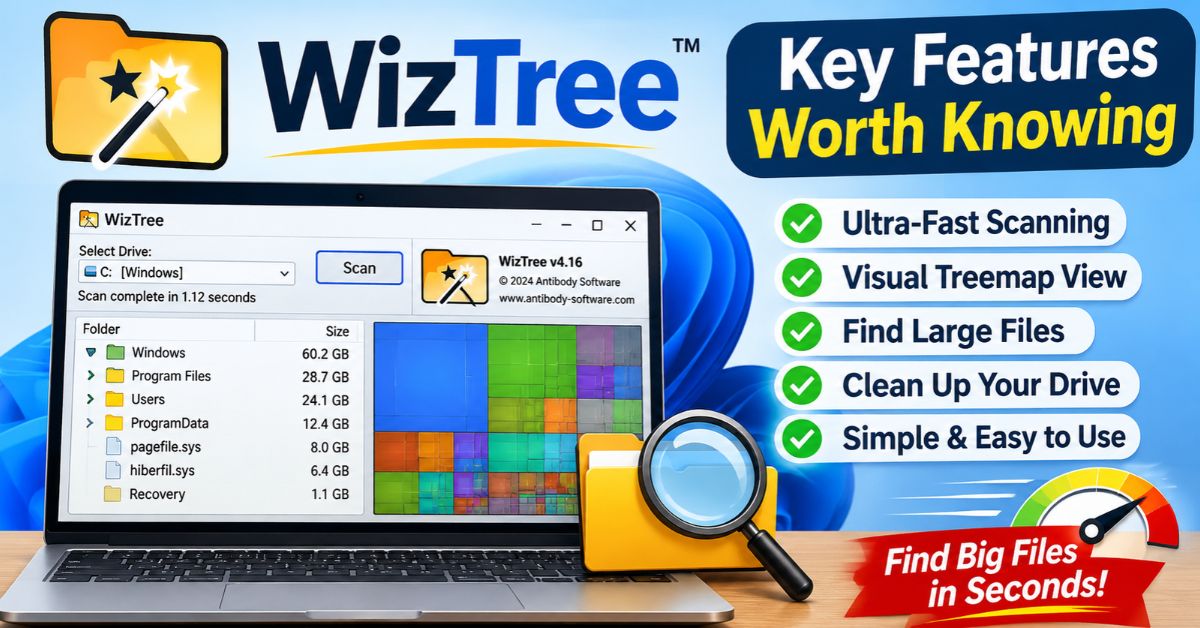
Speed gets the attention, but the feature set is what keeps people using this analyzer. It combines a visual map, flexible search, and basic file management in one small program. You can find a problem, confirm it, and fix it without opening any other app. That workflow saves time during every cleanup session.
The table below summarizes the main capabilities and what they do for you.
| Feature | What It Does | Why It Helps |
|---|---|---|
| MFT scanning | Reads the NTFS Master File Table directly | Scans huge drives in seconds |
| Visual treemap | Draws color-coded blocks sized by file space | Shows storage hogs at a glance |
| Broad drive support | Scans NTFS, FAT, FAT32, network shares, USB drives, and MTP/PTP devices | Works on almost any storage |
| File search | Finds files by name, type, or size | Locates targets quickly |
| Duplicate finder | Spots identical files | Recovers wasted space |
| CSV export | Saves reports to a spreadsheet file | Supports archiving and remote analysis |
Visual Treemap
The treemap is the star of the show. Each rectangle represents a file or folder, and its size matches the space it uses. Big blocks mean big files. Colors group file types, so videos, archives, and installers stand out from documents. A quick glance tells you where your storage went, even if you have never used a disk analyzer before.
Search, Duplicates, and Secure Deletion
You can search for files directly inside the interface. You can also look for duplicates, which often hide in download folders and old backups. When you find something you no longer need, you can delete it right from the program. Secure deletion is available too, which helps when you want sensitive data gone for good.
CSV Export
The app can export your storage report to a CSV file. This is handy for IT teams, who can send a report to a colleague for remote analysis. It also works as a snapshot you can compare against later scans to see how fast your drive fills up.
How to Use WizTree Step by Step
Getting started takes only a few minutes. You can download the standard installer, or grab the zero-install portable version from the official download page. The portable build runs from a USB stick without changing your system, which makes it popular with technicians. Always download from the official source to avoid bundled junk or fake copies.
Follow these steps for your first scan:
- Download the installer or portable version from the official page.
- Launch the program and approve the administrator prompt.
- Select the drive you want to analyze from the drop-down list.
- Click the scan button and wait a few seconds.
- Review the folder tree and the treemap to spot the largest items.
- Right-click any file or folder you no longer need and delete it.
After each scan, take a moment to think before you remove anything. A fast tool makes deleting easy, which also makes mistakes easy. Large folders are not always junk. Some belong to Windows, your apps, or your games, and removing them can cause errors. A short routine keeps you safe and your system stable.
WizTree vs WinDirStat
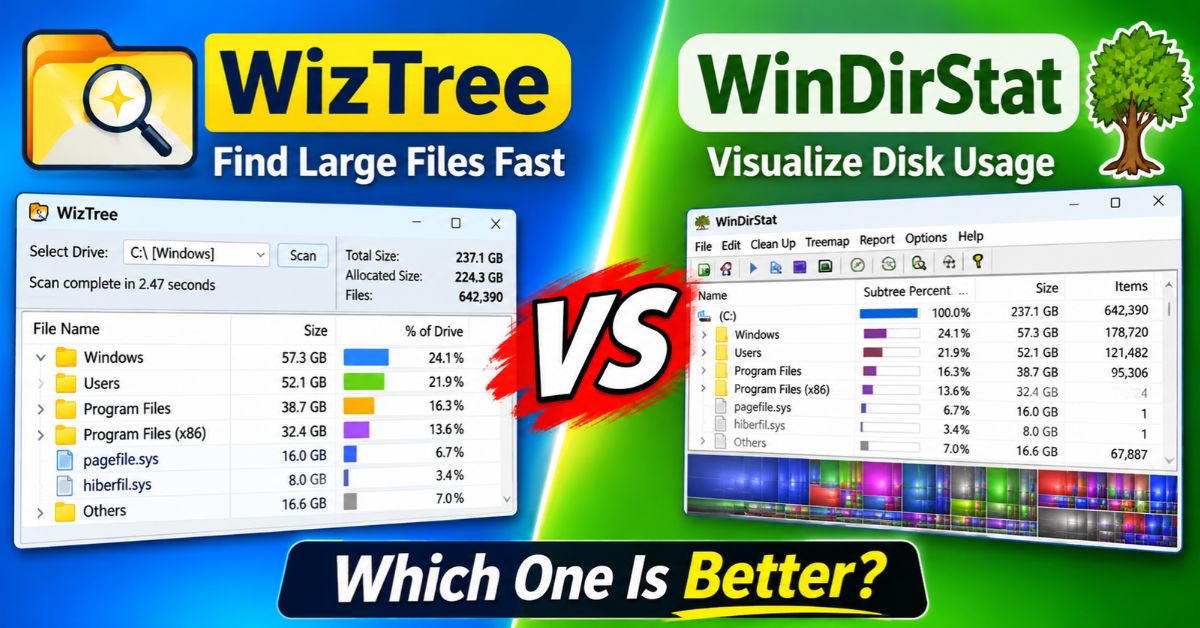
WinDirStat is the best-known name in this category. It has been around for years, and plenty of people still use it. It offers a similar treemap and the same basic idea: show what is using your space. The main difference is how each program collects its data, and that difference drives the speed gap you notice on large drives.
| Category | WizTree | WinDirStat |
|---|---|---|
| Scan method | Reads the NTFS Master File Table directly | Traditionally uses standard file system calls |
| Speed on large drives | Up to 46 times faster, per the developer | Slower on big NTFS drives |
| Treemap | Yes, color-coded | Yes, color-coded |
| Mac support | Yes | No (Windows only) |
| Price | Free for personal use; paid Pro for business | Free, open source |
Both tools do the job, so your choice depends on your needs. If you want the quickest scans on NTFS drives, the speed advantage is hard to ignore. If you prefer open-source software, WinDirStat remains a fair pick. Many users keep both installed, then run the faster one first and use the other for a second opinion.
Pricing and Licensing: Free vs. Pro
The program is completely free for personal use. You can install it at home, scan every drive you own, and never pay a cent. A Donation button appears in the interface, which supports the developer but does not limit your features. Home users get the full tool without ads or trial timers.
Business use works differently. If you plan to run it in a commercial environment, you need a paid Pro license. A Pro license also removes the Donation button. IT departments and consultants should review the current terms on the official site before deploying it, since pricing and license details can change over time.
Conclusion
WizTree gives you a fast, visual way to see where your storage went. It reads the NTFS Master File Table directly, draws a clear treemap, and lets you search, find duplicates, delete files, and export reports. It also works with NTFS, FAT, USB drives, network shares, and attached phones. That mix of speed and flexibility is why it beats older analyzers like WinDirStat on large drives.
It is free for personal use, and a Pro license covers commercial needs. Download it from the official page, scan your main drive, and clear out the biggest space hogs. Just check each item before you delete it, and back up anything important first. A few minutes with WizTree can give you back gigabytes of space and a faster, less cluttered PC.